JSON is your
product’s DNA
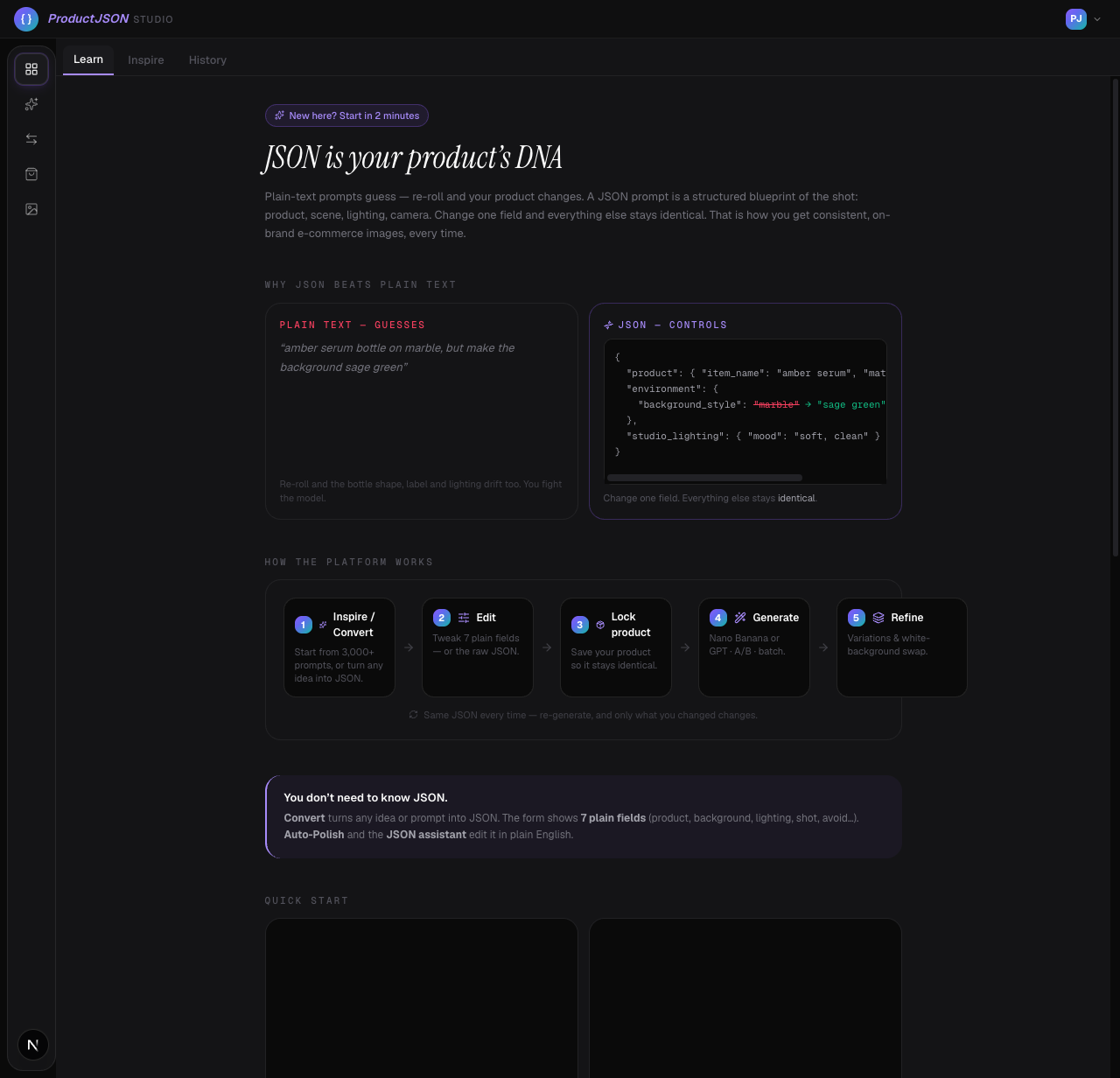
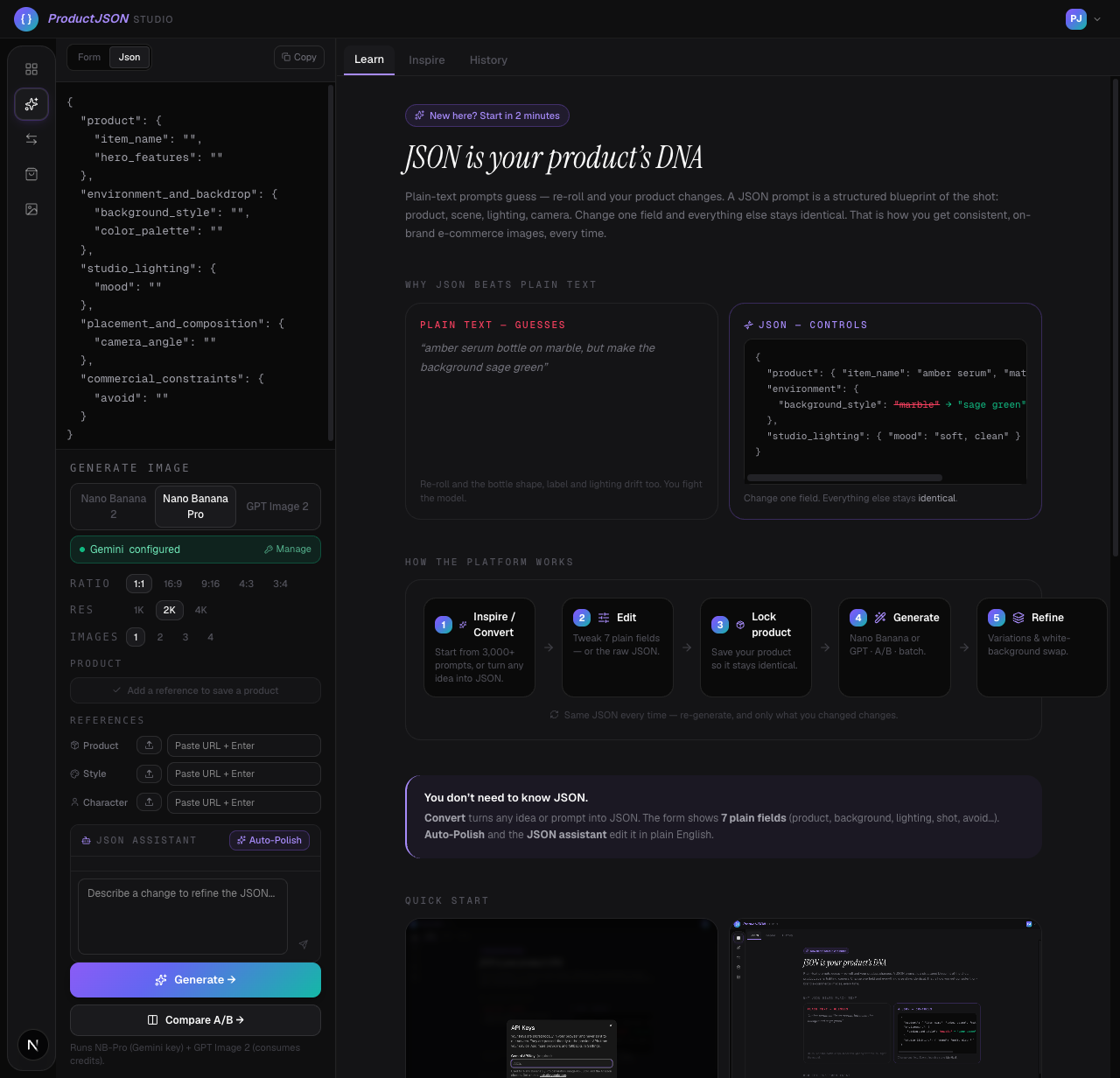
Plain-text prompts guess. Re-roll and your product changes. A JSON prompt is a structured blueprint of the shot: product, scene, lighting, camera. Change one field and everything else stays anchored to the same product intent.
Control preview
Change the field, not the product.
3,174
hosted references
JSON
prompt control
2K
marketplace examples
A one-minute explainer, narrated by NotebookLM.
Why JSON beats plain text
“amber serum bottle on marble, but make the background sage green”
Re-roll and the bottle shape, label and lighting drift too. You fight the model.
{
  "product": { "item_name": "amber serum", "material": "glass" },
  "environment": {
    "background_style": "marble" → "sage green"
  },
  "studio_lighting": { "mood": "soft, clean" }
}
Change one field. Everything else stays identical.
Reference library
Start from a visual system, not a blank prompt.
ProductJSON Studio includes a reviewed ecommerce reference library and a generated marketplace-format upgrade for main images, clean Shopify shots, lifestyle scenes, exploded views, feature callouts, scale images, box contents, and use-case comparisons. Use the references to choose the image type first, then use JSON to control product identity, lighting, camera, and platform constraints. Open Inspiration to see the 240 generated examples listed first inside their matching ecommerce categories.
See the method in motion
Full control AI image editing with JSON prompting · Design Life with AI
JSON prompts: write templates & edit anything · Design Life with AI
How the platform works
Start from 3,000+ prompts, or turn any idea into JSON.
Tweak 7 plain fields — or the raw JSON.
Save your product so it stays identical.
Nano Banana or GPT · A/B · batch.
Variations & white-background swap.
The DNA of AI imagery
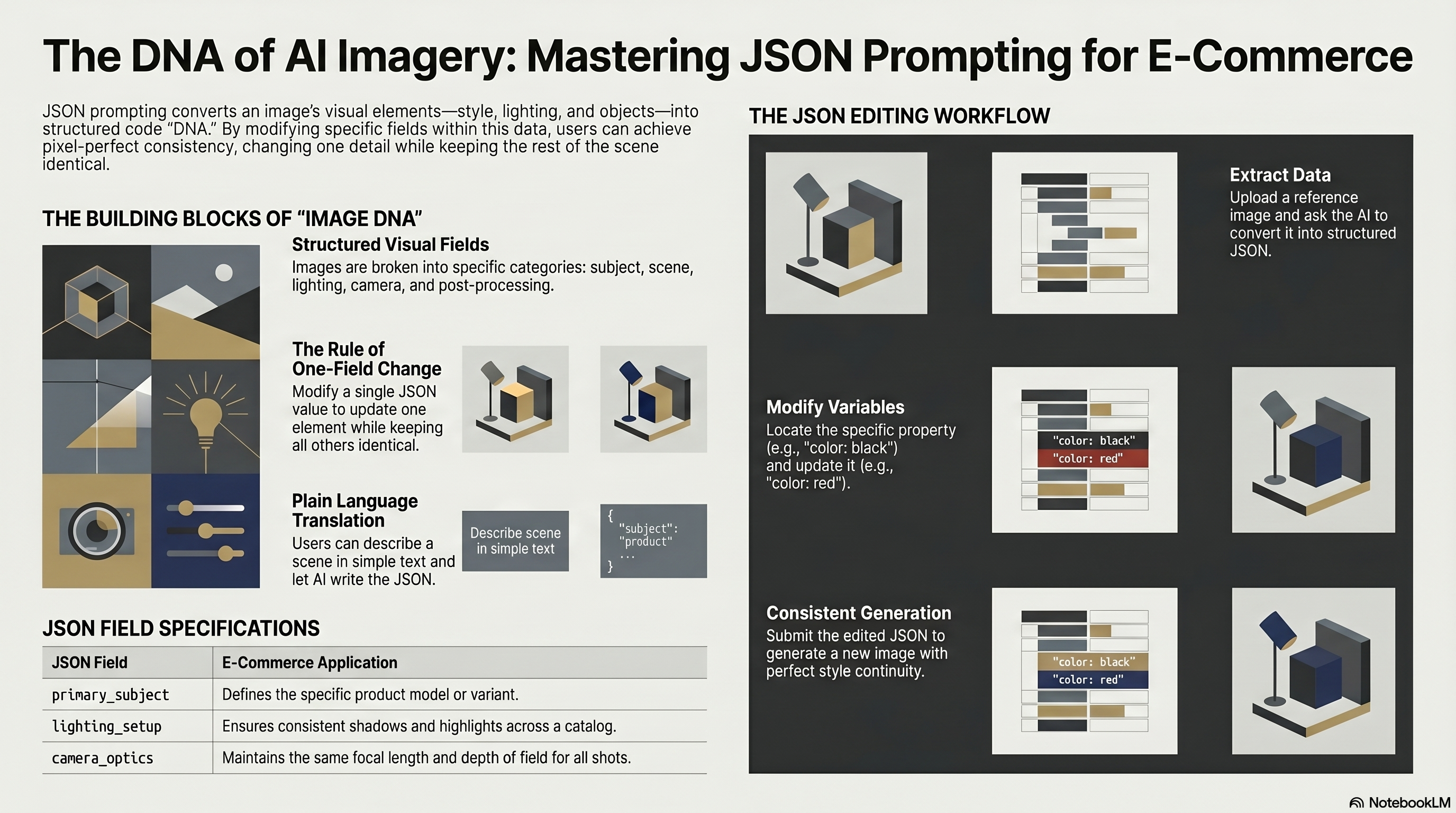
You don’t need to know JSON.
Convert turns any idea or prompt into JSON. The form shows 7 plain fields (product, background, lighting, shot, avoid…). The JSON assistant edits it in plain English, and the JSON is auto-polished before every generation.
Quick start
Explore the library, then add provider keys only when you create.
Open an inspiration card, or paste any idea into Convert to get JSON.
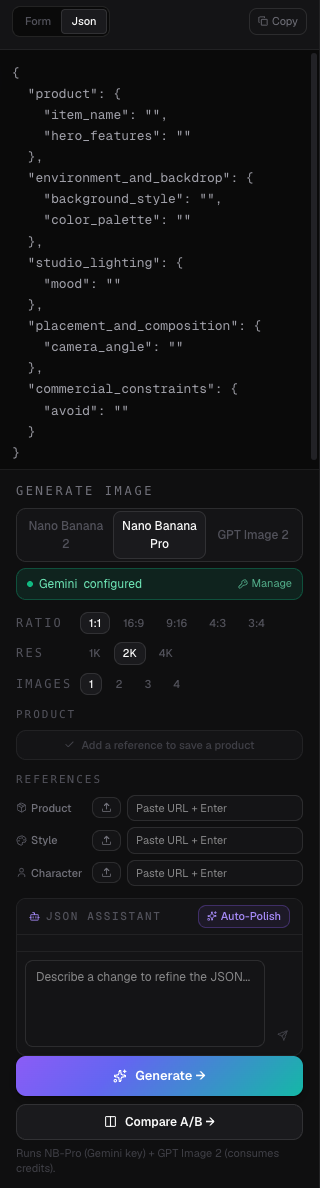
Save a Product so its shape, colour and label stay identical across scenes.
Generate, A/B the two models, and batch up to four at once.
Provider setup
Provider setup
Direct API keys run inside the app. MCP providers run through your coding agent.
ProductJSON Studio can call direct APIs from localhost. Magnific and Higgsfield are different: they are agent-assisted provider workflows, so the buyer sets them up in Claude Code or Codex and lets the agent generate files for the Studio workflow.
Use Settings for direct keys
- Gemini for Nano Banana / NB-Pro style generation
- OpenAI for GPT Image generation
- OpenRouter for JSON editing and prompt operations
Use Claude Code or Codex for MCP
- 1Install the Magnific or Higgsfield MCP/local tool in Claude Code or Codex.
- 2Authenticate the provider in the agent terminal using the buyer account.
- 3Ask the agent to generate from the ProductJSON prompt and product references.
- 4Import the saved outputs back into ProductJSON Studio as references or final images.
Agent prompt
Use my Magnific or Higgsfield MCP/local provider to generate ecommerce product images from the current ProductJSON Studio JSON prompt. Keep product identity locked to my reference image, save the outputs locally, and tell me which files to import back into ProductJSON Studio.
Amazon and Shopify listings
Listings workflow
Amazon compliance or Shopify product pages, from the same product brief.
The Listings tool works in two phases: create a trusted main image first, then use that approved image as the anchor for every secondary listing shot.
Load the product facts
Upload reference photos, then add the brand, product name, listing title, bullets, and accuracy notes.
Approve the main image
Check shape, scale, material, colour, label placement, and silhouette before building the rest of the set.
Build the listing gallery
Generate the secondary images from the approved main, regenerate weak slots, then download the final set.
Amazon
Compliance-first main image, marketplace-safe secondary shots, and zoom-ready export sizes.
Shopify
Brand-led PDP gallery images with a style field for store mood, colours, and art direction.
Which model should I pick?
Use the model-eval loop when a reference style matters: generate or compare with Nano Banana 2 / Pro and GPT Image 2, then keep the model that preserves product identity, composition, text behaviour, and marketplace format most reliably.